

D365 BC Add-On
Finite Capacity Levelling for the Planning Worksheet
Capacity Planning is an extension for Microsoft Dynamics 365 Business Central that adds finite capacity levelling to the standard Planning Worksheet. It evaluates planned production against the actual available capacity of selected work centres and machine centres.
Where the planned load exceeds available capacity, it applies configurable resolution strategies — shifting production earlier, using alternate capacity, splitting lots, or shifting production later.
It runs after the standard planning calculation and before Carry Out Action Message, so planners keep the familiar Business Central process and gain capacity awareness in the resulting plan.
Capacity Planning at a Glance
Capacity Planning
A Business Central extension that makes the Planning Worksheet capacity-aware, and explains the reason behind every capacity-related adjustment.
Product Tour
Capacity Planning in D365 Business Central
Make your production plan reflect what the shop floor can actually deliver.
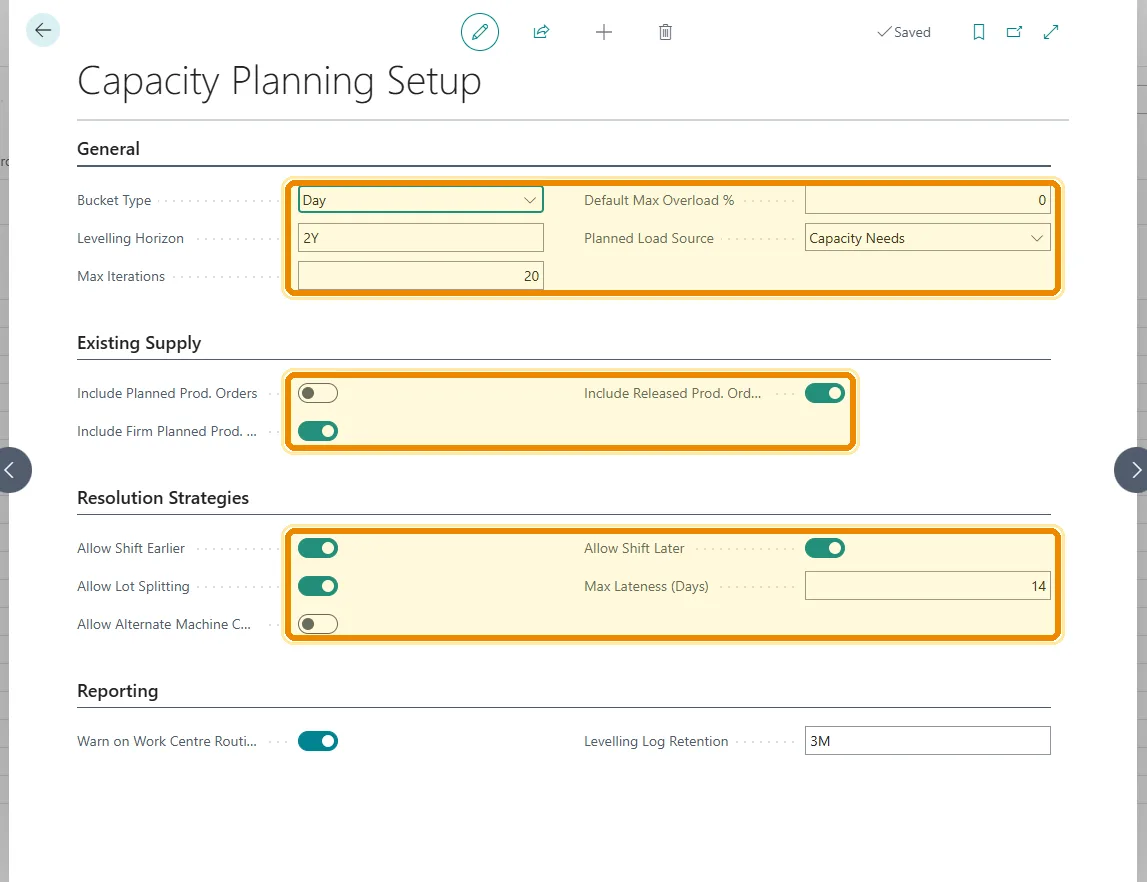
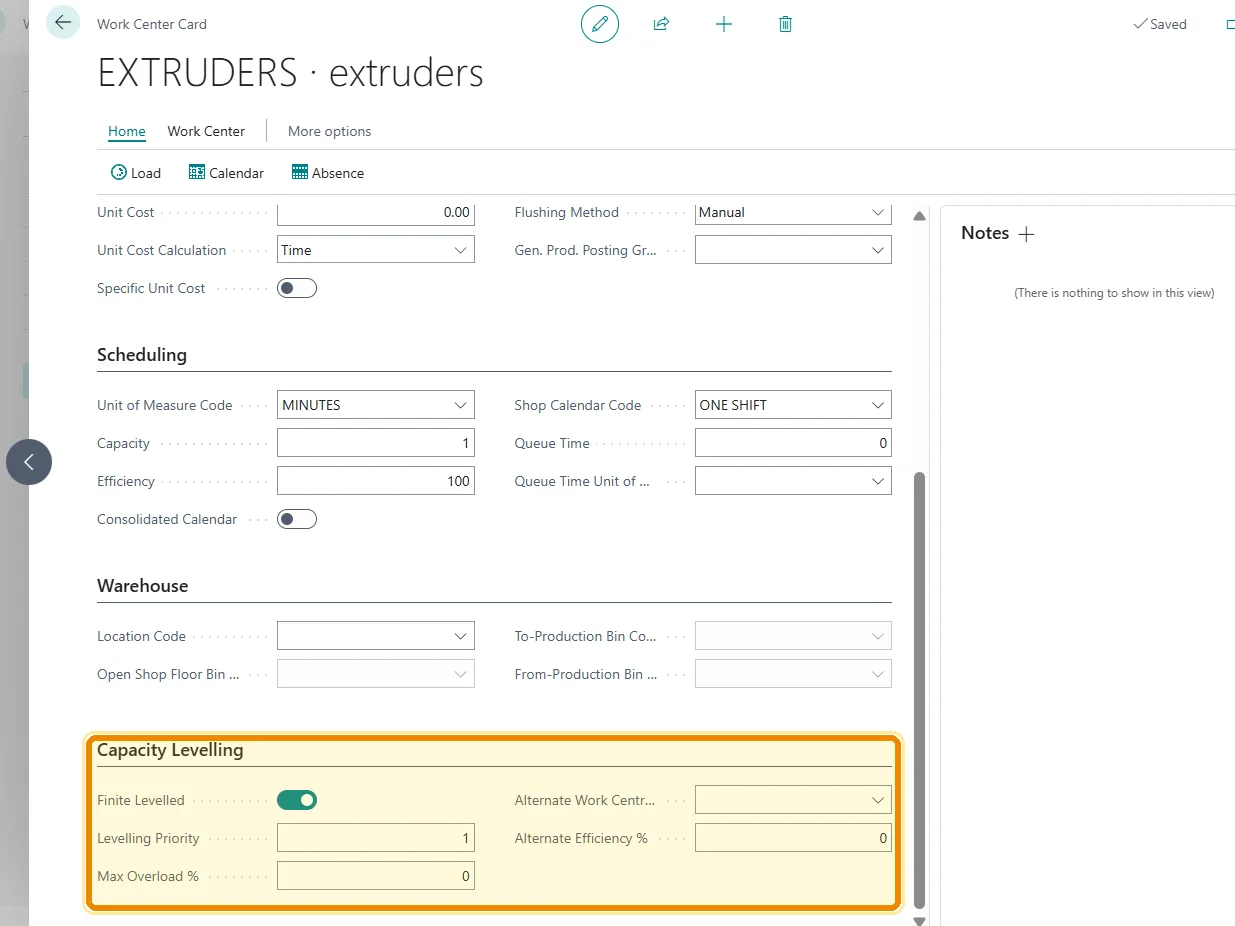
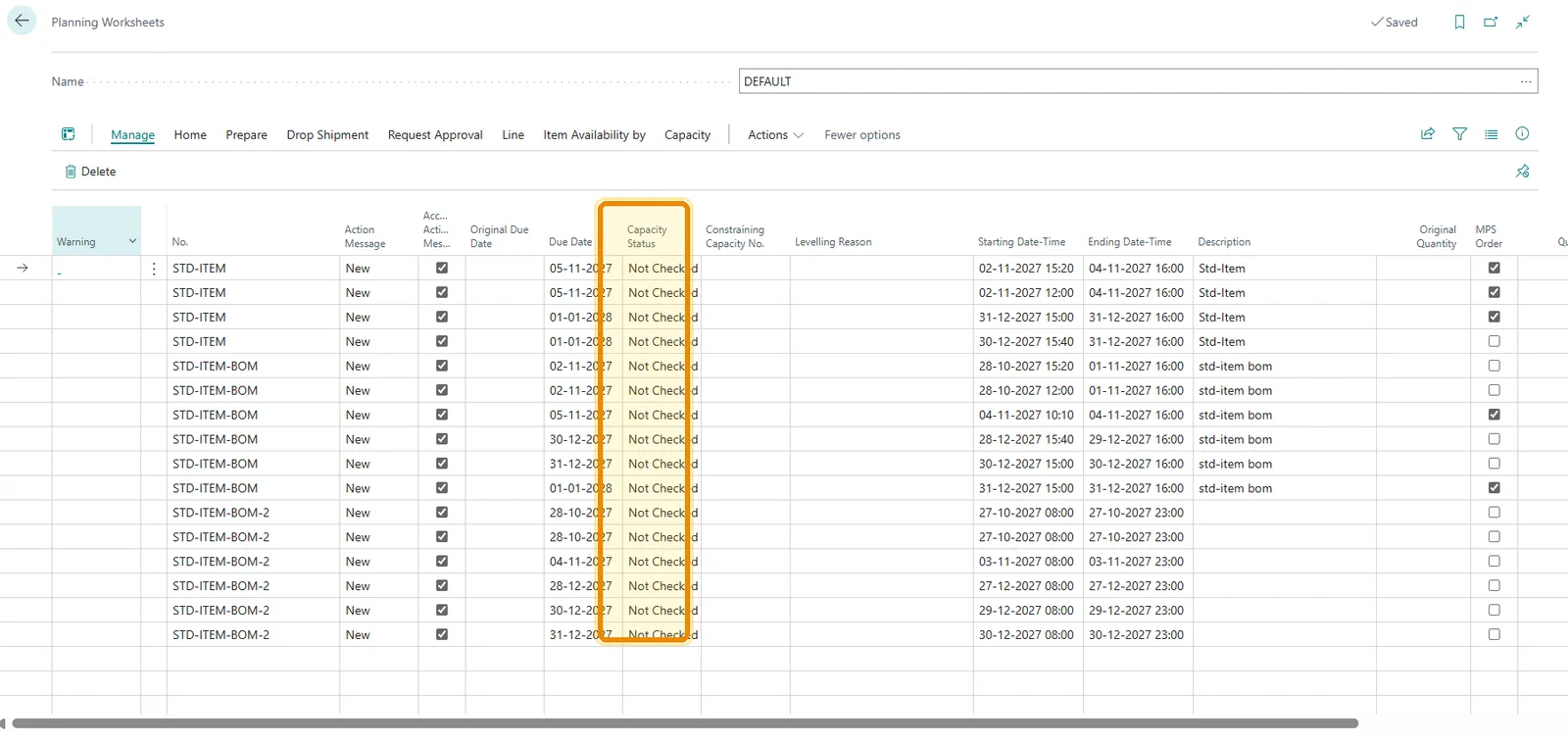
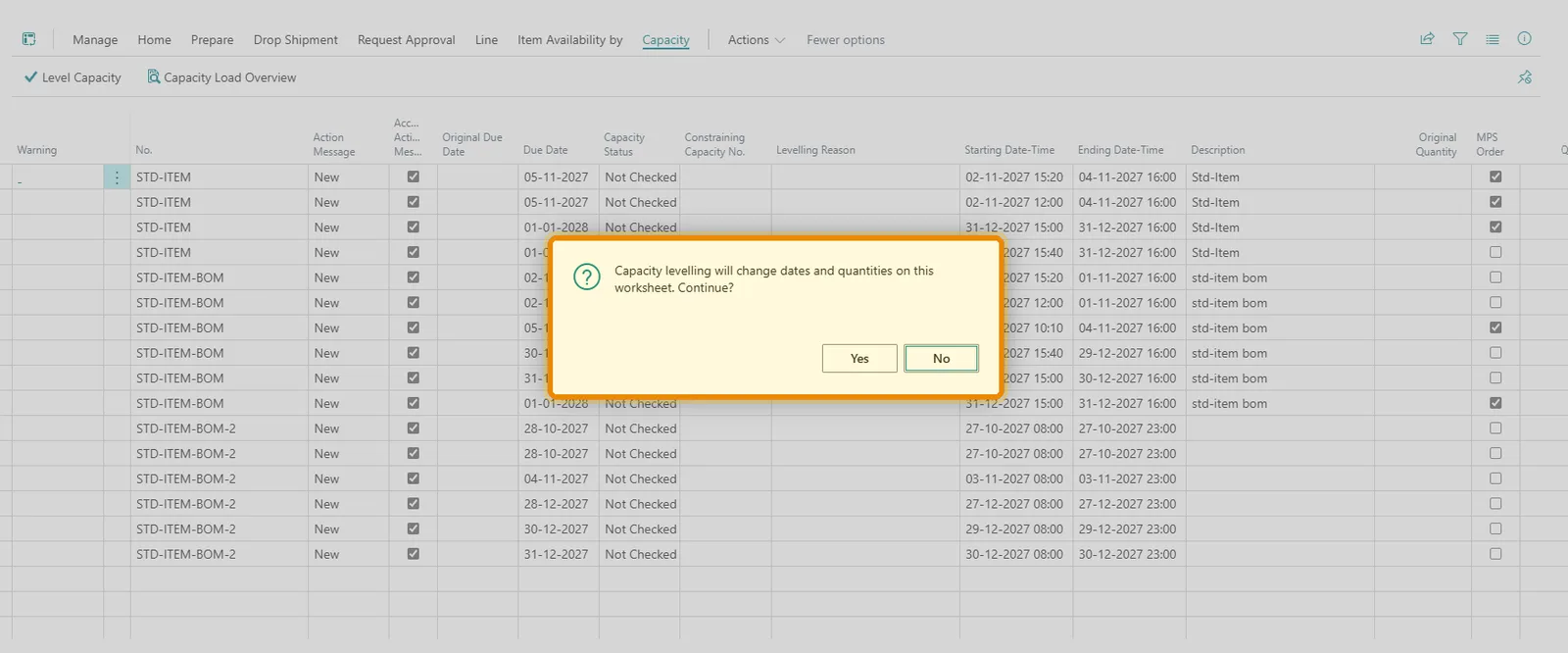
Capacity Planning Setup
Set the levelling horizon, bucket type, and resolution strategies — shift earlier, shift later, lot splitting, alternate machine centres — from a single setup page.
The Problem
Where Material Planning and Real Capacity Diverge
Dates Without a Capacity Check
Standard planning determines what needs to be produced, how much, and when it is needed — but the resulting worksheet does not ensure the required resources can execute all planned operations within those dates.
Overloaded Work Centres
Several production requirements can be scheduled against the same work centre in the same period even when the combined workload exceeds its available capacity.
Manual Analysis to Find the Constraint
Planners work out by hand which work centre is causing the constraint, whether the requirement can move to another period, and whether the quantity can be split to resolve the overload.
No Explanation for a Changed Date
Without a record of what was adjusted and why, it is hard to answer why a planning date moved — or to identify the lines that still need manual intervention.
The Solution
What Capacity Planning Does
Finite Capacity Levelling
Work centres and machine centres configured as Finite Levelled are evaluated against real available capacity, so constraints apply to genuine bottlenecks rather than to every resource.
Configurable Resolution Strategies
Overloads are resolved in sequence — shift earlier, alternate capacity, lot splitting, shift later — and anything the rules cannot resolve is surfaced rather than left as an unrealistic plan.
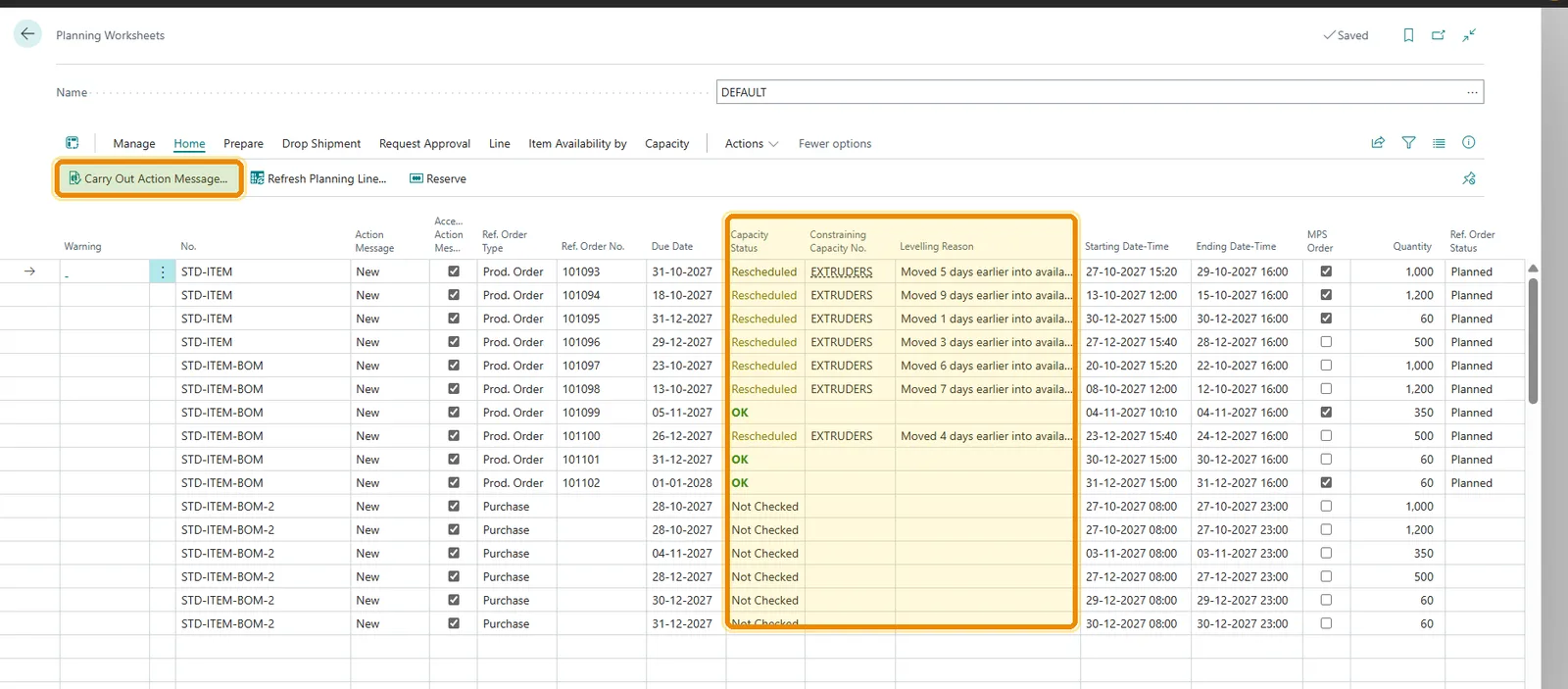
Capacity Status on Every Line
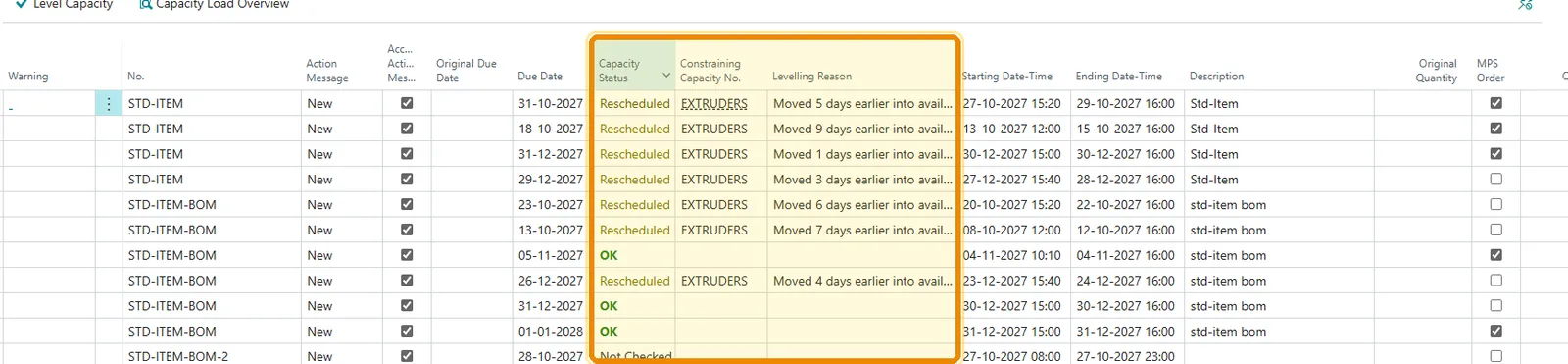
Each line reports OK, Rescheduled, Split, Reassigned, Overloaded, Infeasible, or Not Checked, so work that was never evaluated is never presented as having passed a capacity check.
Constraining Capacity & Reason
Where a line moved, the worksheet names the capacity unit that caused the constraint and the levelling reason behind the adjustment.
Capacity Load Overview
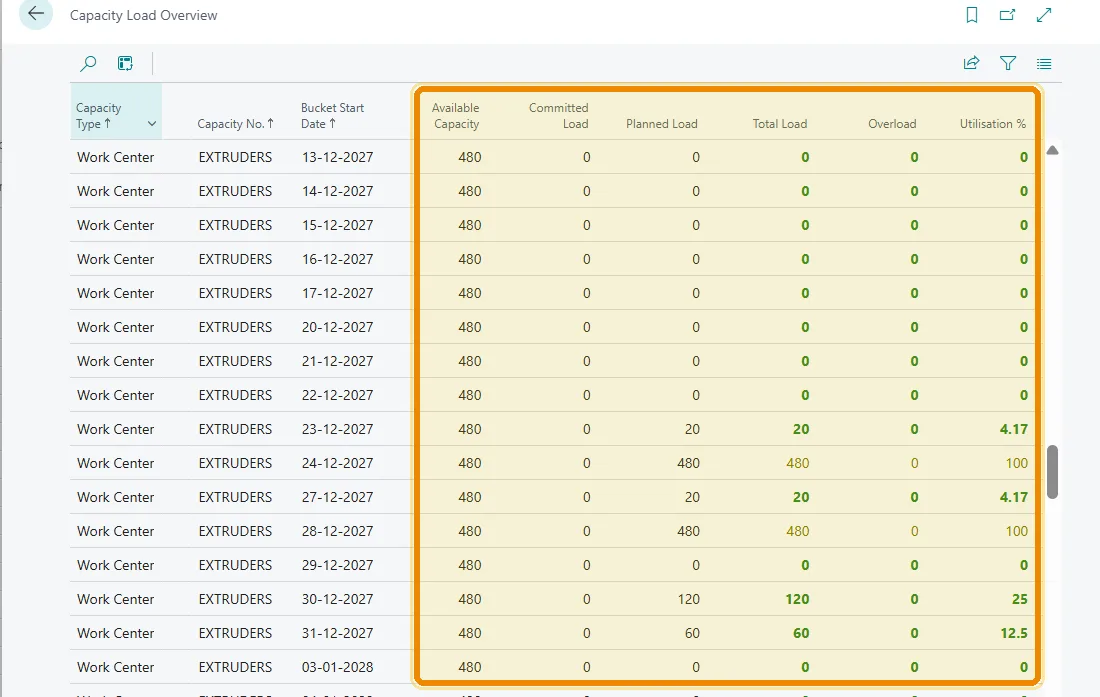
A bucket-by-bucket view of available capacity, committed load, planned load, total load, overload, and utilisation — the numbers behind each decision.
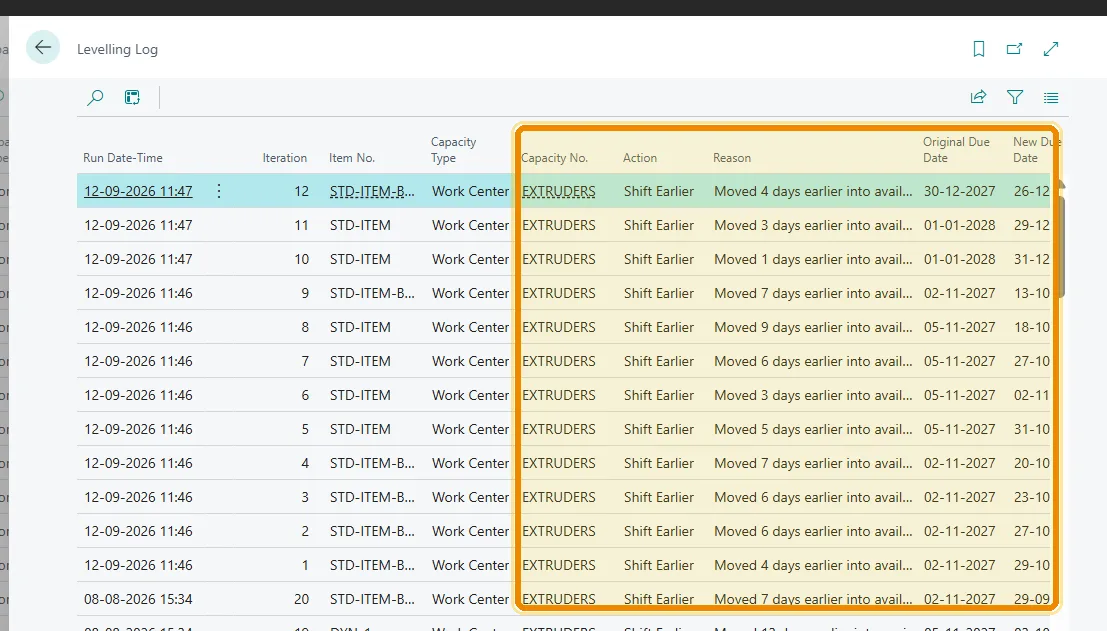
Levelling Log
Every adjustment is recorded with the iteration, item, capacity unit, action taken, reason, and the original and new due dates, giving planners a full audit trail.
In Practice
How Levelling Works
01
Calculate Load
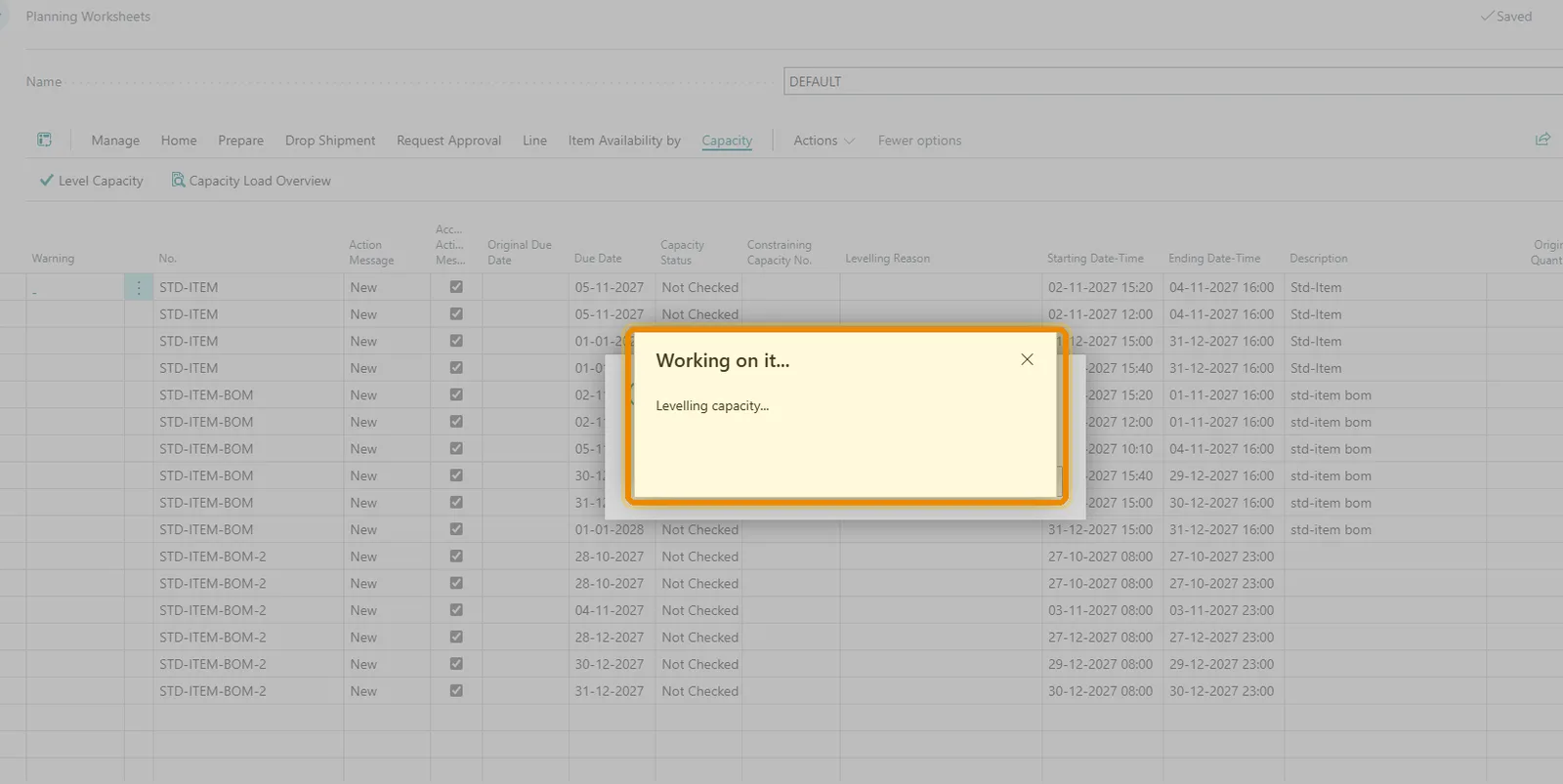
Load on finite-levelled capacity units is calculated across the complete planned workload.
02
Compare Capacity
Planned and committed load are compared against available capacity to identify overloaded buckets.
03
Resolve Overloads
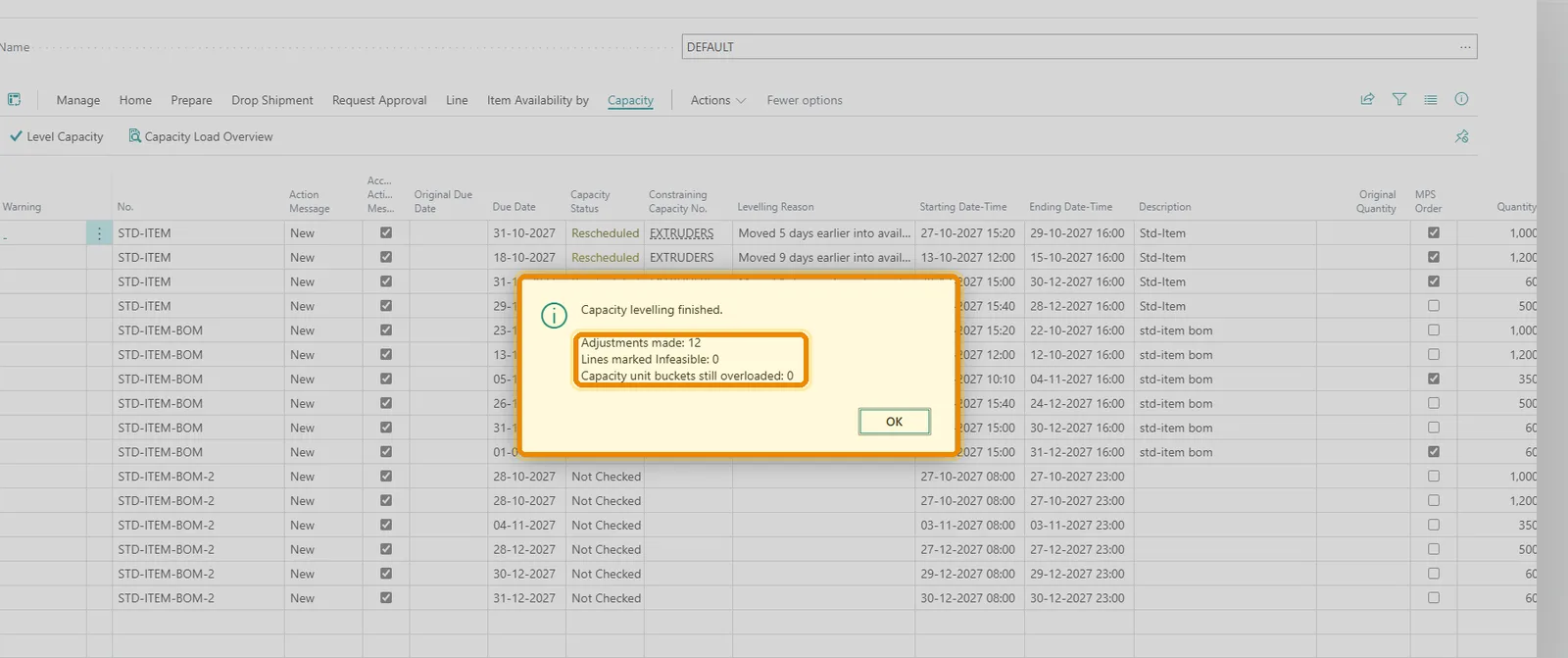
Configured strategies are applied in sequence, with capacity recalculated after each adjustment.
04
Report the Outcome
The worksheet is updated with capacity status, constraining capacity, and the reason for each change.
See It in Action
See capacity levelling running in Business Central
A walkthrough of the setup, a levelling run over the Planning Worksheet, and the capacity status, load overview, and levelling log that come out of it.
- Finite Capacity Levelling
- Capacity Status & Constraining Capacity
- Capacity Load Overview
- Levelling Log Audit Trail
Business Value
Dynamic Solutions. Lasting Impact.
FAQ
Frequently Asked Questions
What does Capacity Planning add to Dynamics 365 Business Central?+
It adds finite capacity levelling to the standard Planning Worksheet. Planned production is evaluated against the actual available capacity of selected work centres and machine centres, and overloads are resolved using configurable strategies.
Where does capacity levelling sit in the Business Central planning process?+
It runs after the standard planning calculation and before Carry Out Action Message, so planners keep the familiar Business Central planning workflow and gain capacity awareness in the resulting plan. The standard planning engine is not replaced — the complete worksheet is post-processed, because capacity is a shared constraint across items.
How are capacity overloads resolved?+
In sequence: shift earlier, alternate capacity, lot splitting, then shift later. Where no valid resolution exists within the configured rules the line is marked infeasible and surfaced to the planner, rather than left as an unrealistic plan.
Do all work centres have to be capacity constrained?+
No. Only work centres and machine centres configured as Finite Levelled are evaluated, each with its own levelling priority, max overload percentage, and optional alternate work centre — so constraints apply to genuine bottlenecks rather than every resource.
How do we find out why a planned date changed?+
Each planning line shows its capacity status, the constraining capacity, and a levelling reason. The Capacity Load Overview gives available capacity, committed load, planned load, total load, overload and utilisation per bucket, and the Levelling Log records every adjustment with the iteration, item, capacity unit, action, reason, and the original and new due dates.
Can capacity levelling be run more than once?+
Yes. Before each run the previous levelling adjustments are undone — quantities and dates restored, split remainders removed, alternate-capacity assignments reversed — and the worksheet is then evaluated again against the latest configuration and demand.
What capacity statuses can a planning line have?+
OK, Rescheduled, Split, Reassigned, Overloaded, Infeasible, and Not Constrained or Not Checked. The last of these matters: work that was never evaluated against finite capacity is never presented as having passed a capacity check.