

D365 SCM Add-On
Allocate Short Stock by Priority, Not by Who Ordered First
When stock runs short, most systems fall back on a simple rule: first come, first served. The order that happened to be entered first takes the inventory — whoever it belongs to, and whenever it ships.
The Reservation Workbench gives you control instead: by which customer matters most, which order ships soonest, or which batch is closest to expiring. It locks in the right stock with a single click, consistently, every time.
Reservation Workbench at a Glance
Smart Reservation
A Dynamics 365 Supply Chain Management extension that allocates short stock under your own priority rules, and records every decision.
Product Tour
Smart Reservation in D365 Supply Chain Management
Decide who gets the stock when there isn't enough to go round.
Demand and Supply on One Screen
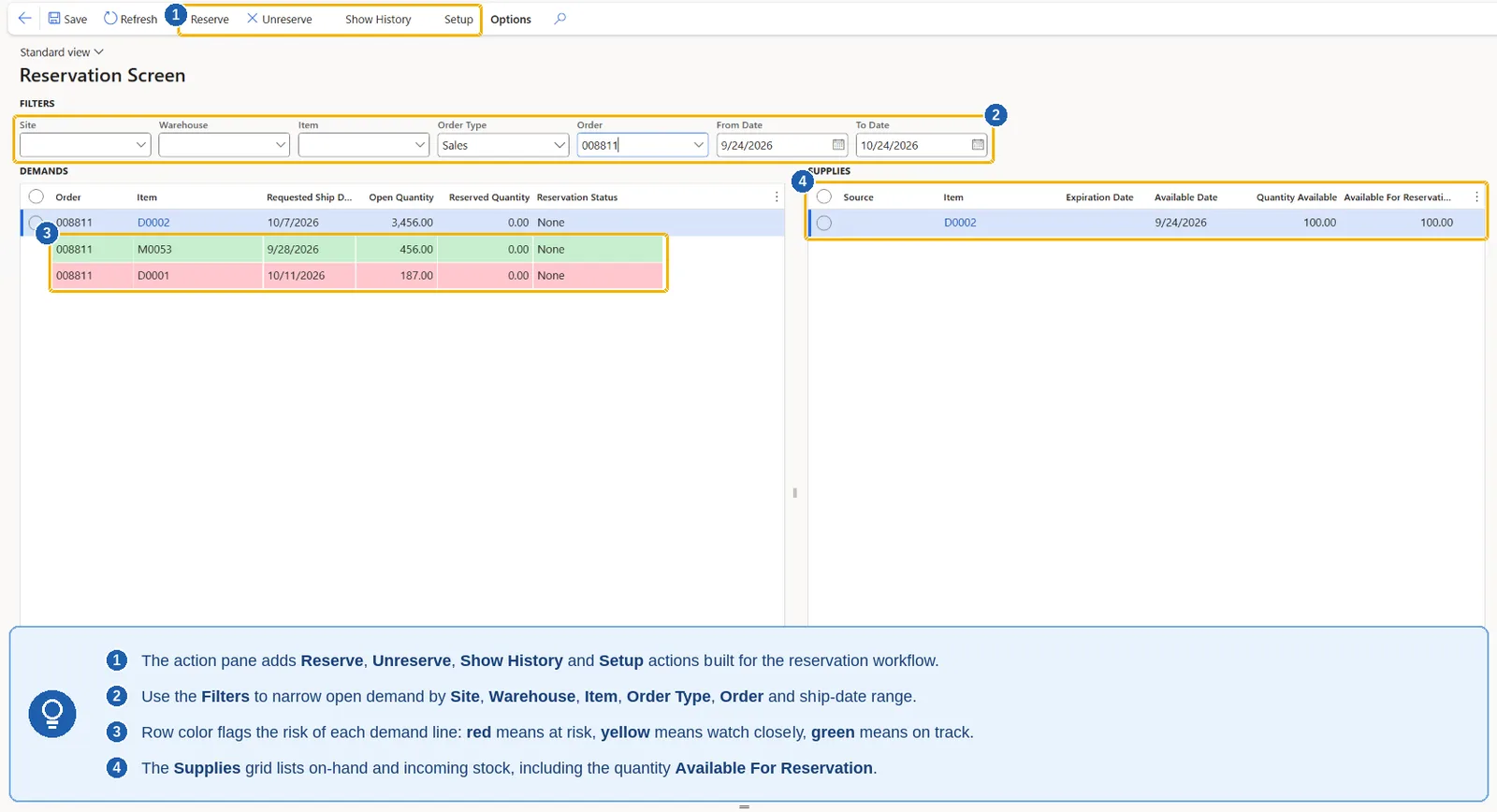
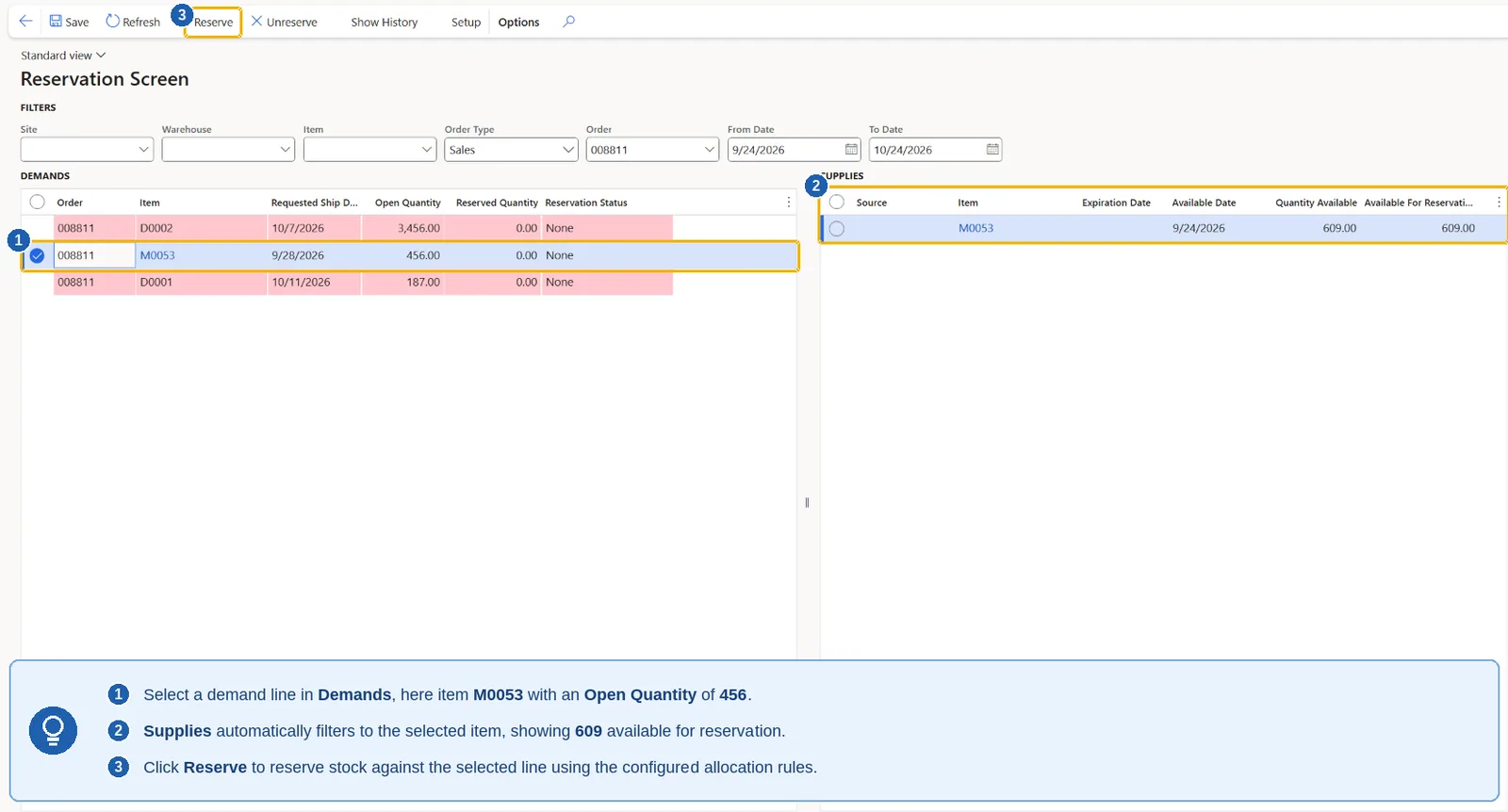
Filters narrow open demand by site, warehouse, item, order type, order, and ship-date range. Row colour flags the risk on every demand line — red at risk, yellow watch closely, green on track — while the Supplies grid lists on-hand and incoming stock with the quantity available for reservation.
The Problem
What First Come, First Served Costs You
Best Customers Wait Behind Low-Priority Orders
Stock goes to whoever was entered first, not to who matters most — so a top account can end up with nothing while a routine order takes the last of the inventory.
A Late Order Is a Surprise, Not a Warning
Nobody notices that an order cannot ship on time until the day it doesn't, when there is no longer anything useful to be done about it.
Fresh Stock Ships While Older Stock Expires
Whichever batch is easiest to grab goes out first, and a manual process can lock in some batch rather than the one it meant to — so the wrong batch goes out the door.
No Record of Why a Reservation Changed
Weeks later, in a dispute or an audit, nobody remembers why a reservation was cancelled and there is nothing to point to. Meanwhile planners spend hours matching orders to stock by hand.
The Solution
What the Reservation Workbench Does
Priority Tiers, Set by You
Rank customers or customer groups once. Your top tier is always served first when stock is short — no case-by-case judgement, no exceptions to remember.
Red / Yellow / Green on Every Order
At-risk orders are coloured the moment the screen opens. There is no report to run before the risk is visible.
Oldest or Soonest-to-Expire First
Stock is pulled in the order you choose, automatically and per item, so older inventory leaves the shelf before it becomes a write-off.
Locks the Exact Batch It Picked
The reservation holds the specific batch the rules selected. No substitutions, ever — what was promised is what ships.
Every Action Logged, with a Reason
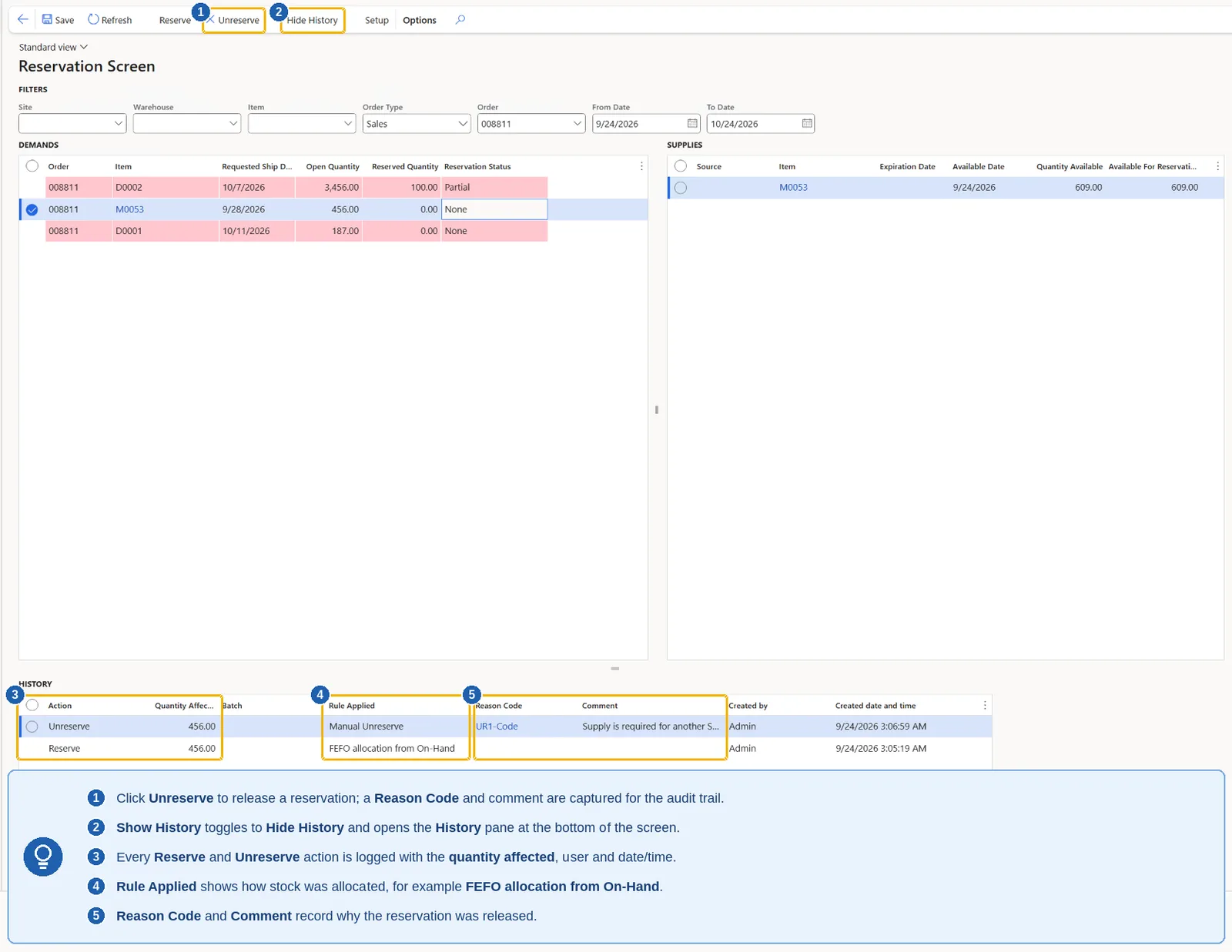
Every reserve and release is time-stamped and attributed, and a release requires a reason from your own approved list.
One Screen, One Click
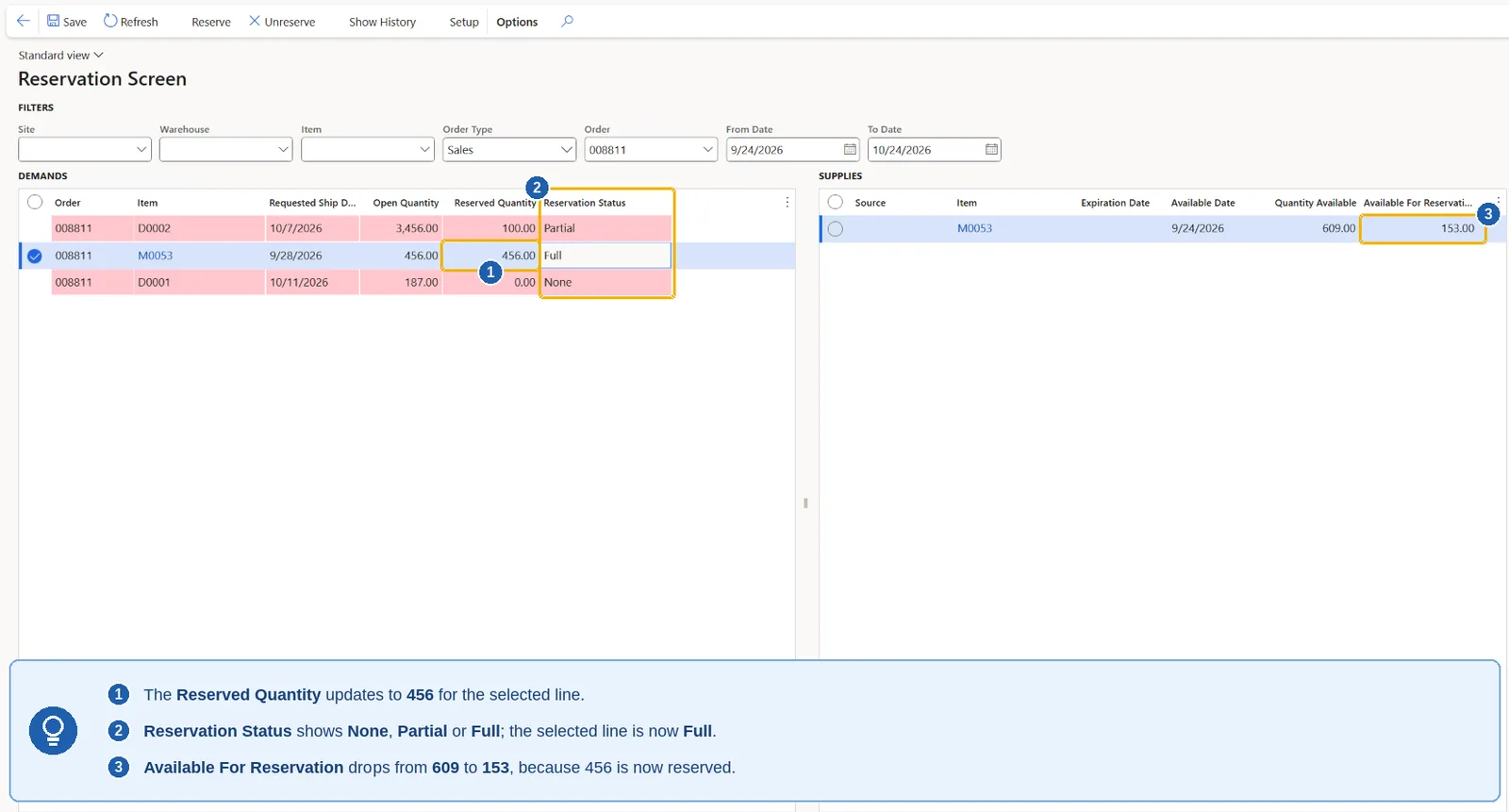
Open orders and available stock sit side by side. Select, reserve or release — done, instead of matching orders to stock batch by batch.
A Concrete Example
40 Units Left, Three Orders Waiting
You have 40 units left of a part, and three orders are waiting on it.
Order A
30 units, ships in 2 days, a regular account
Order B
20 units, ships in 5 days, your top account
Order C
15 units, ships in 10 days, a regular account
Without the Workbench
Whichever order was entered first is served — Order A quietly takes all 40 units. Your top account, Order B, gets nothing. No one notices that Order C cannot be filled until its ship date arrives.
With the Workbench
Order B is reserved first, since it belongs to your top account. Order A comes next, since it ships soonest. Order C turns Red as soon as the screen opens, so someone can call that customer today instead of on the ship date.
Configuration
Six Settings You Configure Yourself
The rules that decide who gets the stock are yours to set and to change — no developer needed.
01
Priority Rules
Rank a customer or customer group from top priority to standard.
02
Risk Thresholds
Set how many days out counts as Yellow, and how many as Red.
03
Allocation Method
Choose, per item, oldest-stock-first or soonest-to-expire-first.
04
Delivery Policy
Decide, per customer, whether partial shipments or mixed batches are allowed.
05
Order-Type Rules
Decide whether customer orders always outrank warehouse transfers, or compete equally.
06
Reason Codes
Maintain your own approved list of reasons for releasing a reservation.
In Practice
How It Works, Every Time
01
See
Every open order alongside every unit of stock actually available.
02
Prioritize
Orders sort automatically by customer priority, then by how soon they ship.
03
Reserve
One click locks in the right stock and the right batch, under your own rules.
04
Track
Every action is recorded automatically, so you always know what happened and why.
See It in Action
See the Reservation Workbench running
A short walkthrough inside Dynamics 365 Supply Chain Management: open demand and available supply side by side, prioritised and colour-coded, with reserve and release applied from the same screen.
- Priority Tiers You Set Yourself
- Red / Yellow / Green Risk Signal
- Oldest or Soonest-to-Expire First
- Every Action Logged with a Reason
Business Value
Dynamic Solutions. Lasting Impact.
FAQ
Frequently Asked Questions
What does Smart Reservation do in Dynamics 365 Supply Chain Management?+
Smart Reservation adds a Reservation Workbench that shows open demand and available supply side by side, and allocates stock under rules you define rather than first come, first served. Demand can be filtered by site, warehouse, item, order type, order and ship-date range, and reserved or released from the same screen.
How does it decide which order gets the stock when inventory is short?+
Orders are ranked by the priority tier you assign to a customer or customer group, then by how soon they ship. Within an item, stock is pulled oldest-first or soonest-to-expire-first depending on the allocation method you choose, and order-type rules decide whether customer orders outrank warehouse transfers or compete equally.
Can we configure the allocation rules ourselves, without a developer?+
Yes. Six settings are maintained in the application: priority rules, risk thresholds, allocation method, delivery policy, order-type rules, and reason codes. No development work is needed to change how stock is allocated.
How do we see which orders are at risk of missing their ship date?+
Every demand line carries a red, yellow or green signal that is applied the moment the screen opens — no report to run. You set how many days out counts as yellow and how many as red in the risk thresholds.
Is there an audit trail of reservations and releases?+
Yes. Every reserve and unreserve is logged with the quantity affected, the rule applied — for example FEFO allocation from on-hand — the user, and the date and time. Releasing a reservation requires a reason code from your own approved list, with an optional comment.
Does a reservation hold a specific batch?+
Yes. The reservation locks the exact batch the allocation rules selected, with no substitutions, so the batch that was promised is the batch that ships.