
D365 BC Add-On
Fulfillment Status for Every Sales Line, on the Order Page
In Microsoft Dynamics 365 Business Central, understanding the fulfillment status of an individual sales line usually means checking several things across the order — availability, reservations, shipments, invoices, release status, and the requested delivery date.
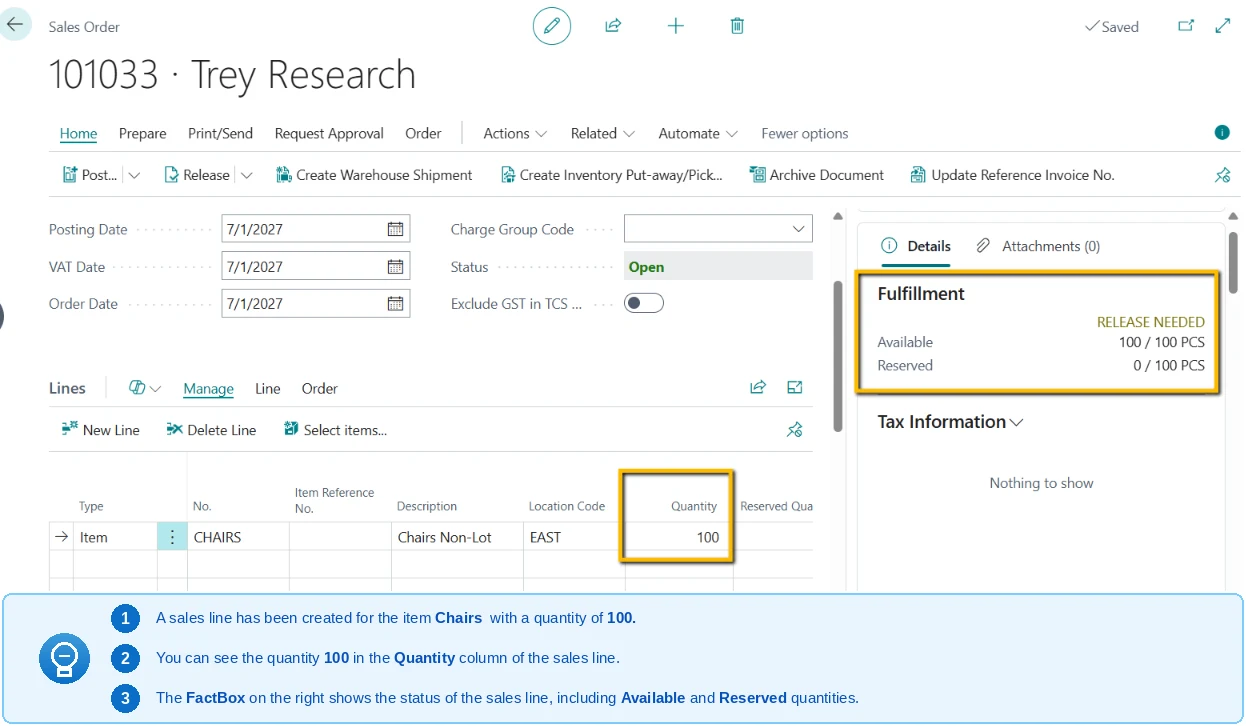
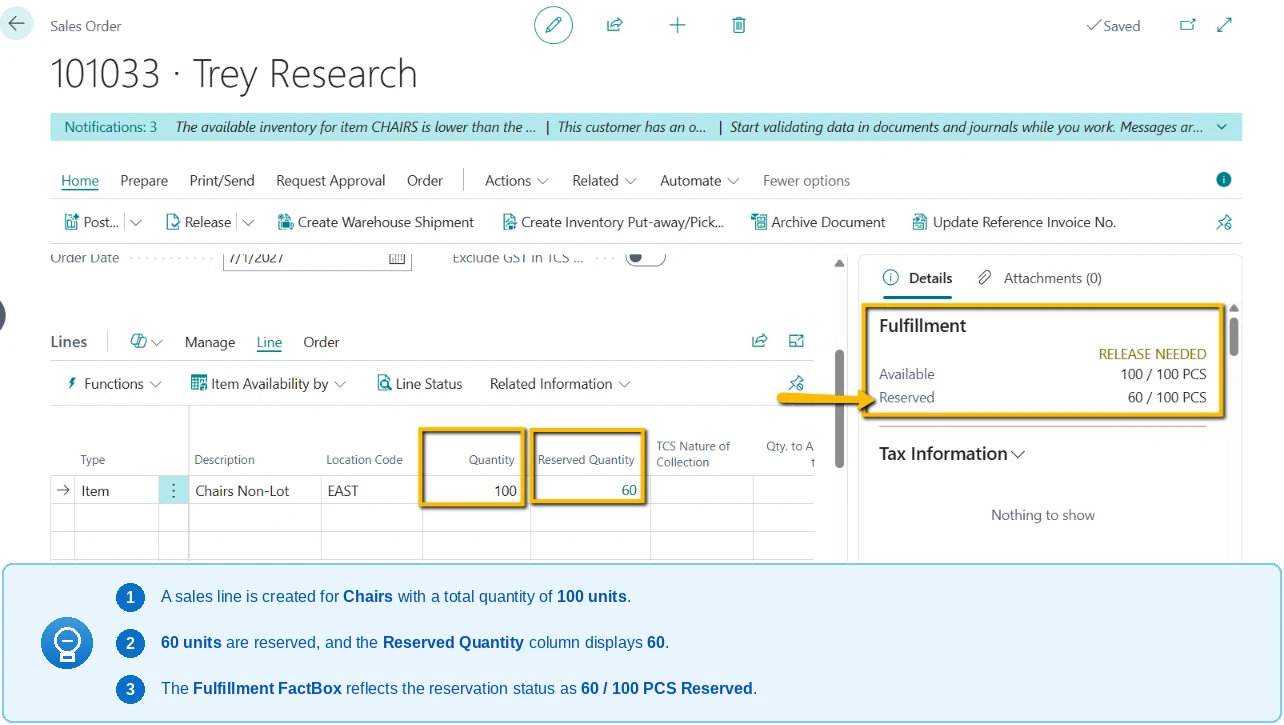
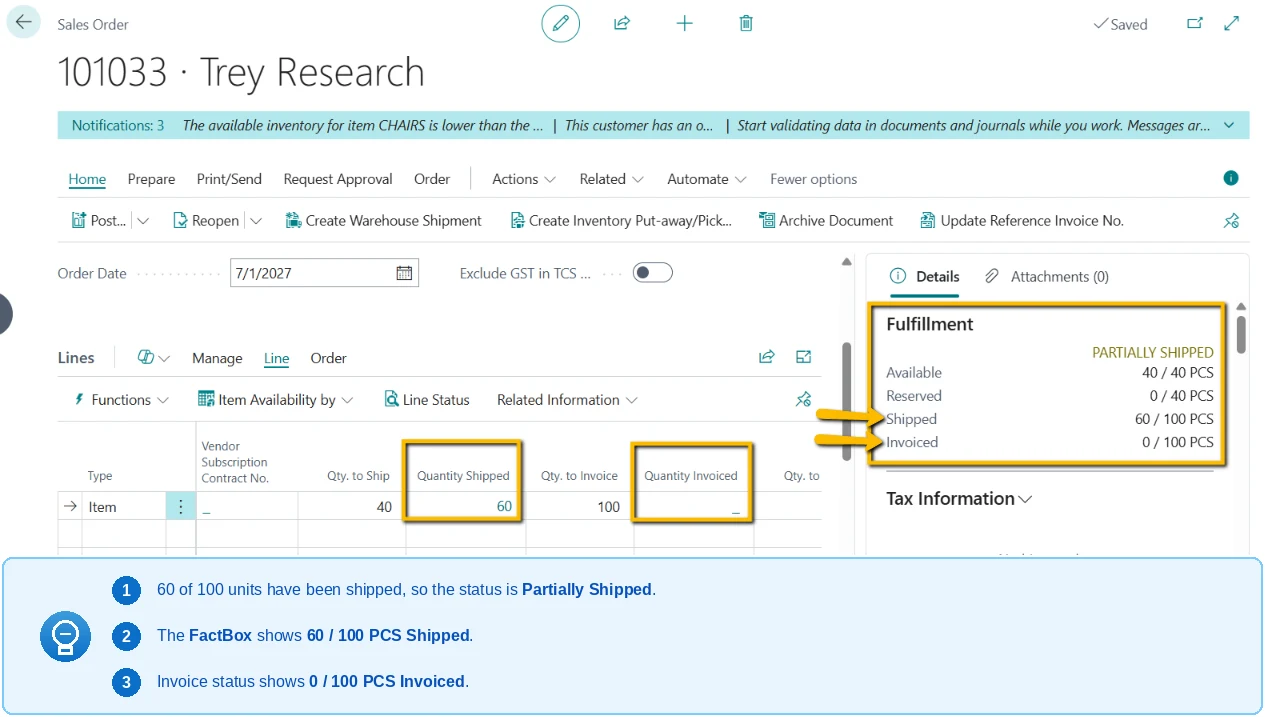
Sales Status Viewer brings that information together in the Fulfillment FactBox on the Sales Order page. Instead of interpreting quantities and statuses by hand, users get a clear status for the line based on its current fulfillment situation.
Alongside the status, the FactBox shows the reason behind it and the next action required — and flags issues such as unavailable inventory or a delivery date that has already passed.
Sales Status Viewer at a Glance
Sales Status Viewer
A Business Central extension that turns the scattered signals on a sales line into one readable status, with the reason behind it and the next action required.
Product Tour
Sales Status Viewer in D365 Business Central
Know where every sales line stands, without leaving the order.
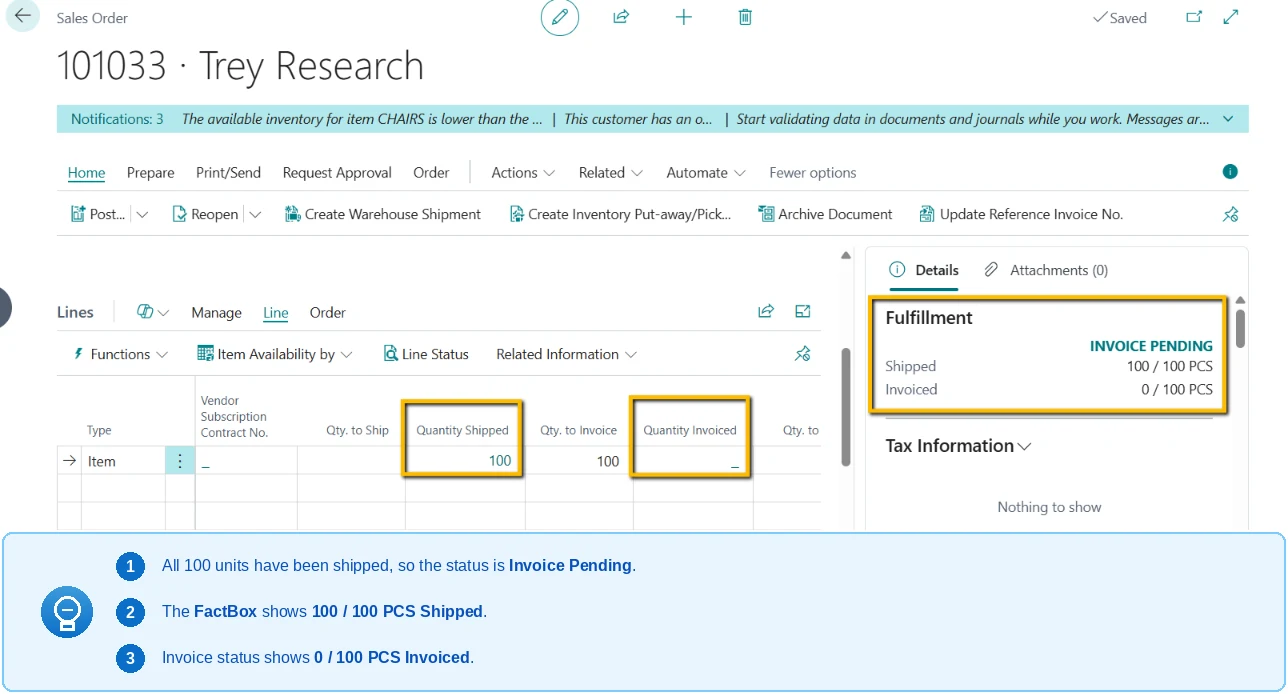
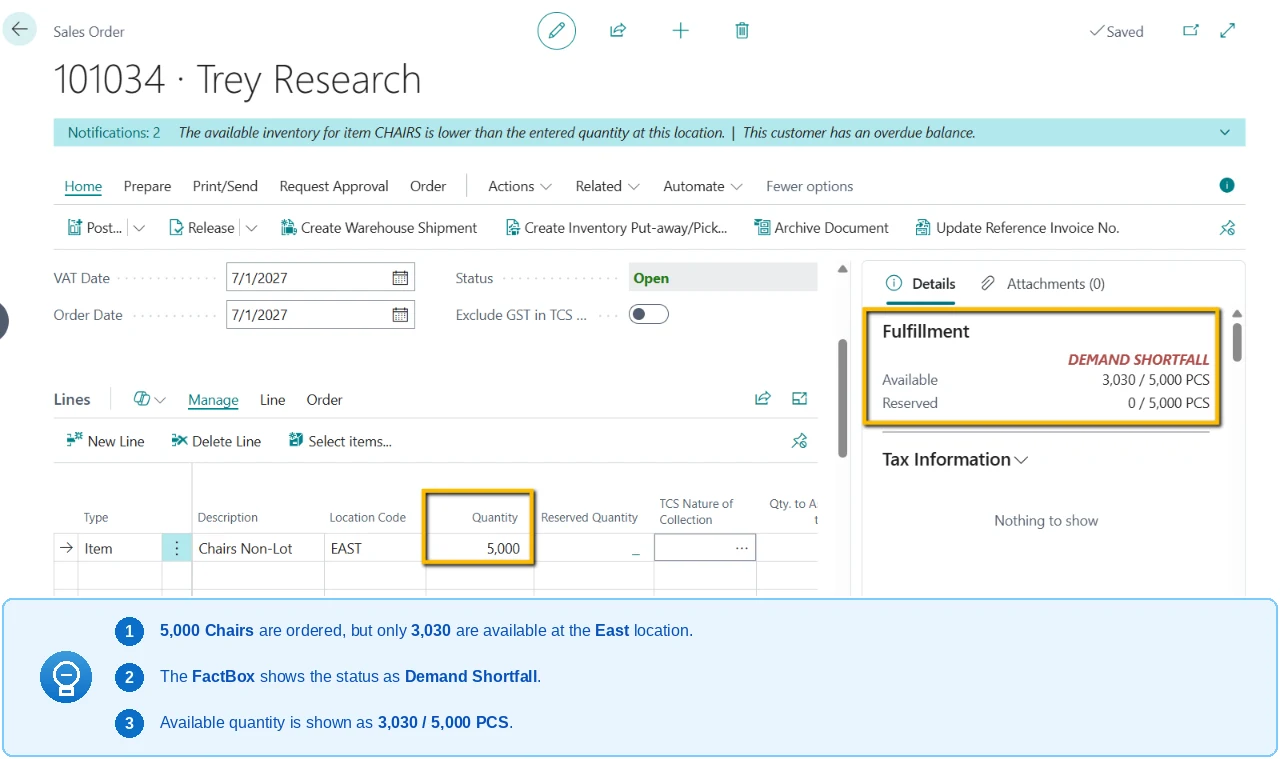
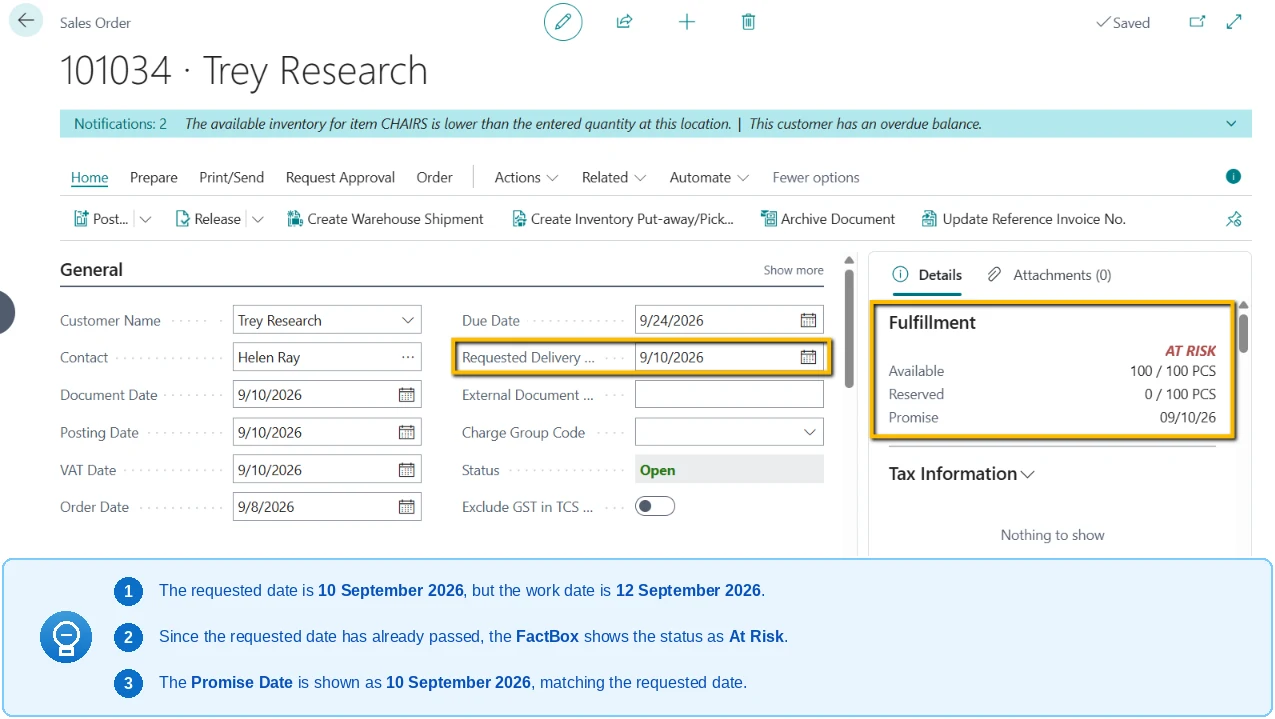
Full Line Status
Ordered quantity shown alongside available and reserved, so the state of the line is readable without opening another page.
Screens shown are representative of the add-on experience. Product-specific captures are being finalised.
The Problem
Why a Sales Line's Status Is Hard to Read
The Signals Are Scattered
Availability, reservations, shipments, invoices, release status, and the requested delivery date all have to be checked separately to understand one sales line.
Quantities Need Interpreting
Users compare ordered, shipped, and invoiced quantities by hand to work out whether a line is ready to proceed, partly fulfilled, or waiting on something.
Problems Surface Late
A line that is short on stock, or whose requested delivery date has already passed, looks much like any other line until someone goes looking.
Answers Cost Several Pages
A routine question about one line turns into navigation across multiple pages, which slows down the response to the customer.
The Solution
What Sales Status Viewer Does
Status in the Fulfillment FactBox
The status sits in the Fulfillment FactBox on the Sales Order page, so it is read in context — no separate page to open, no extra step in the process.
A Status for Each Situation
Release Needed, Partially Shipped, Invoice Pending, Demand Shortfall, and At Risk — each derived from the line's current fulfillment situation.
The Reason Behind the Status
Every status is accompanied by the reason it was reached, so the outcome can be understood without reconstructing it from the underlying quantities.
The Next Action Required
Alongside the status and its reason, the FactBox states what needs to happen next for the line to move forward.
Shortfall Alerts
Where available stock is not sufficient to fulfil the ordered quantity, the line is reported as a demand shortfall rather than left to be discovered later.
Delivery-Date Risk
Open lines whose requested delivery date has already passed are flagged as at risk, so they can be prioritised for follow-up.
In Practice
How It Works
01
Open the Sales Order
The Fulfillment FactBox sits on the standard Sales Order page, alongside the lines.
02
Select a Line
The FactBox reads that line's availability, reservations, shipments, invoices, release status, and dates.
03
Read the Status
One clear status is presented, with the reason behind it and the next action required.
04
Act on It
Release the order, chase the shortfall, raise the invoice, or prioritise a line whose date has passed.
See It in Action
See it running in Business Central
A short walkthrough of Sales Status Viewer inside a live Business Central environment, showing line status, reservation, and shipment detail on real sales orders.
- Status in the Fulfillment FactBox
- The Reason Behind the Status
- The Next Action Required
- Shortfall and Delivery-Date Alerts
Business Value
Dynamic Solutions. Lasting Impact.
FAQ
Frequently Asked Questions
What does Sales Status Viewer do in Business Central?+
It presents the fulfillment status of each sales line in the Fulfillment FactBox on the Sales Order page, together with the reason behind that status and the next action required — instead of leaving users to interpret availability, reservations, shipments, invoices, release status and dates themselves.
Which statuses can a sales line show?+
Release Needed, Partially Shipped, Invoice Pending, Demand Shortfall, and At Risk — each derived from the current fulfillment situation of that line.
Do users have to open another page to see the status?+
No. The status is read in context in the Fulfillment FactBox on the standard Sales Order page, so nothing is added to the existing process and no navigation is required.
How does it flag a stock problem on a sales line?+
Where the available stock is not sufficient to fulfil the ordered quantity, the line is reported as a demand shortfall rather than left to be discovered later in the process.
How are late orders identified?+
Open lines whose requested delivery date has already passed are flagged as at risk, so they can be prioritised for follow-up instead of being found on the ship date.